
How to Use Keyboard Shortcuts on Mac: A Complete Guide

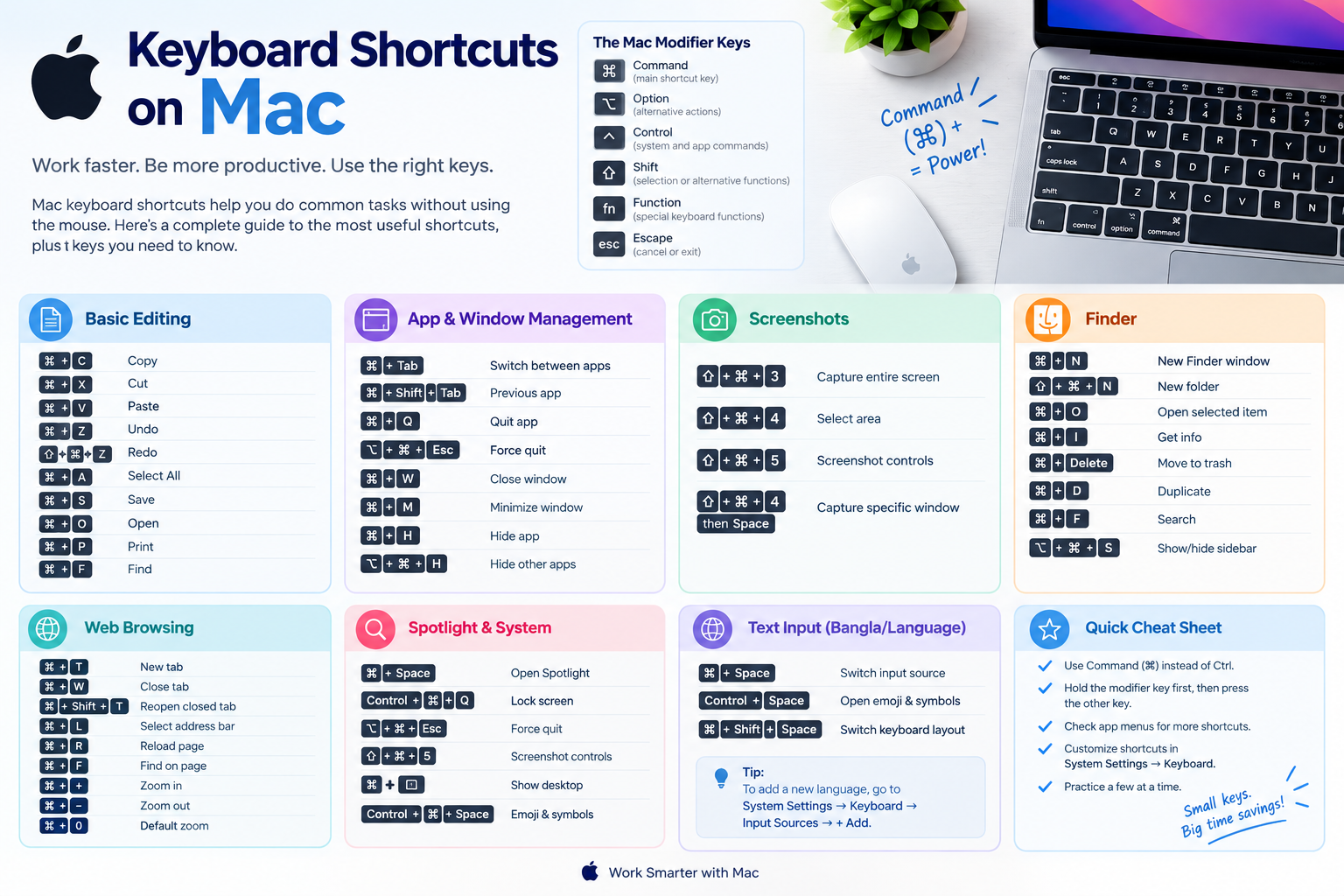
Mac keyboard shortcuts are one of the easiest ways to perform common tasks without constantly reaching for the mouse or trackpad. From copying and pasting text to switching between apps, taking screenshots, searching files, and managing windows, keyboard shortcuts can make everyday Mac use faster and more efficient.
This guide explains how to use keyboard shortcuts on Mac, the most useful shortcuts to learn, what the Mac modifier keys mean, and how to create your own shortcuts.
What Are Mac Keyboard Shortcuts?
A keyboard shortcut is a combination of two or more keys that performs a specific action.
For example:
Command (⌘) + C → Copy
Instead of selecting a menu option with your mouse, you can hold the Command key and press C.
Mac shortcuts commonly use these modifier keys:
| Key | Symbol | Common Purpose |
|---|---|---|
| Command | ⌘ | Main shortcut key |
| Option | ⌥ | Alternative actions |
| Control | ⌃ | System and app commands |
| Shift | ⇧ | Selection or alternative functions |
| Function | fn | Special keyboard functions |
| Escape | Esc | Cancel or exit an action |
Tip: On most Macs, the Command (⌘) key works similarly to the Ctrl key used for many common shortcuts on Windows.
How to Use a Keyboard Shortcut on Mac
Using a shortcut is simple.
Step 1:
Identify the modifier key and action key.
For example, to copy something:
Command (⌘) + C
Step 2:
Press and hold Command (⌘).
Step 3:
While holding Command, press C.
Step 4:
Release both keys after the command is performed.
You don’t usually need to press the keys at exactly the same time. Hold the modifier key first, then press the other key.
Essential Mac Keyboard Shortcuts
These are some of the most useful shortcuts for everyday Mac use.
| Action | Shortcut |
|---|---|
| Copy | Command + C |
| Cut | Command + X |
| Paste | Command + V |
| Undo | Command + Z |
| Redo | Command + Shift + Z |
| Select All | Command + A |
| Save | Command + S |
| Open | Command + O |
| Command + P | |
| Find | Command + F |
| Close Window | Command + W |
| Quit App | Command + Q |
| Minimize Window | Command + M |
| New Window | Command + N |
These shortcuts work across many Mac applications, although individual apps may have additional shortcuts.
Mac Shortcuts for Copy, Paste and Editing
Text editing is one of the areas where keyboard shortcuts can save significant time.
Copy
Command + C
Copies selected text, files, or other supported content.
Cut
Command + X
Removes selected content and places it on the clipboard.
Paste
Command + V
Pastes the copied or cut content.
Select Everything
Command + A
Selects all available content in the current field, document, or window.
Undo
Command + Z
Reverses the most recent action.
Redo
Command + Shift + Z
Repeats an action that was previously undone in applications that support it.
Find
Command + F
Opens the Find function in many applications.
Mac Shortcuts for Switching Between Apps
If you regularly work with multiple applications, these shortcuts can make multitasking easier.
Switch Between Applications
Command + Tab
Hold Command and press Tab to move through your open applications.
Switch Back to the Previous App
Command + Tab, then release Command after selecting the previous application.
Quit an Application
Command + Q
Closes the active application.
Force Quit an Unresponsive App
Option + Command + Esc
This opens the Force Quit window, where you can select an application that isn’t responding.
Mac Keyboard Shortcuts for Screenshots
Mac provides several built-in screenshot shortcuts.
Capture the Entire Screen
Shift + Command + 3
Captures the entire screen.
Capture a Selected Area
Shift + Command + 4
Turns the pointer into a selection tool so you can capture a specific area.
Open the Screenshot Tool
Shift + Command + 5
Opens macOS’s screenshot and screen-recording controls.
Capture a Specific Window
Press Shift + Command + 4, then press Spacebar, and select the window you want to capture.
Mac Shortcuts for Finder
Finder shortcuts can help you manage files and folders more efficiently.
| Action | Shortcut |
|---|---|
| New Finder Window | Command + N |
| New Folder | Shift + Command + N |
| Open Selected Item | Command + O |
| Get Info | Command + I |
| Move to Trash | Command + Delete |
| Duplicate | Command + D |
| Search | Command + F |
| Show/Hide Sidebar | Option + Command + S |
For example, instead of right-clicking to create a folder, you can press:
Shift + Command + N
Mac Shortcuts for Web Browsing
Keyboard shortcuts are also useful when browsing the internet.
Common browser shortcuts include:
- Command + T — Open a new tab
- Command + W — Close the current tab
- Command + Shift + T — Reopen the most recently closed tab
- Command + L — Select the address/search bar
- Command + R — Reload the current page
- Command + F — Find text on the page
- Command + + — Zoom in
- Command + – — Zoom out
- Command + 0 — Return to the default zoom level
Some browser-specific shortcuts may vary depending on the browser you’re using.
Mac Shortcuts for Managing Windows
You can use keyboard shortcuts to manage windows without constantly using the mouse.
Close the Current Window
Command + W
Minimize the Current Window
Command + M
Hide the Current Application
Command + H
Hide Other Applications
Option + Command + H
These shortcuts are especially useful when working with multiple applications.
Mac Shortcuts for Spotlight Search
Spotlight lets you quickly search for files, applications, settings, and other information.
Press:
Command + Space
This opens Spotlight.
You can then type the name of an application, file, folder, setting, or other searchable item.
Mac Shortcuts for System Functions
Some useful system-level shortcuts include:
| Action | Shortcut |
|---|---|
| Spotlight | Command + Space |
| Lock Screen | Control + Command + Q |
| Force Quit | Option + Command + Esc |
| Screenshot Controls | Shift + Command + 5 |
| Show Desktop | Command + Mission Control key on supported keyboards |
| Open Emoji & Symbols | Control + Command + Space |
Some shortcuts can vary depending on your Mac model, macOS version, keyboard, and settings.
How to Learn Mac Keyboard Shortcuts?
You don’t need to memorize dozens of shortcuts at once.
Start with the shortcuts you use most frequently:
- Command + C — Copy
- Command + V — Paste
- Command + X — Cut
- Command + Z — Undo
- Command + A — Select All
- Command + S — Save
- Command + F — Find
- Command + Tab — Switch apps
- Command + W — Close window
- Command + Space — Spotlight
Once these become familiar, gradually add shortcuts for Finder, screenshots, browsers, and other applications.
How to Find Shortcuts in Mac Apps
Many Mac applications display their keyboard shortcuts directly in their menus.
Open an application’s menu bar and look beside menu commands such as File, Edit, View, or Window.
You’ll often see symbols such as:
- ⌘ Command
- ⌥ Option
- ⇧ Shift
- ⌃ Control
This can help you discover shortcuts without memorizing a separate list.
How to Create a Custom Keyboard Shortcut on Mac
macOS allows you to create custom shortcuts for certain application menu commands.
Depending on your macOS version, you can generally find these settings under:
System Settings → Keyboard → Keyboard Shortcuts
From there, you can customize supported shortcuts for areas such as applications, services, and system functions.
When creating a custom shortcut, choose a key combination that doesn’t conflict with an existing shortcut.
Common Mistakes When Using Mac Shortcuts
Confusing Command and Control
Windows users often expect Ctrl + C for copying. On Mac, the standard shortcut is:
Command + C
Forgetting the Option Key
Some advanced shortcuts require Option (⌥) in addition to Command or Shift.
Using the Wrong Keyboard Layout
Different keyboard layouts may place certain symbols in different locations.
Assuming Every App Uses the Same Shortcuts
Most standard commands are consistent across macOS applications, but individual apps can have their own shortcuts.
Mac Keyboard Shortcut Cheat Sheet
Here is a quick reference for some of the most useful shortcuts:
| Shortcut | Function |
|---|---|
| ⌘ + C | Copy |
| ⌘ + X | Cut |
| ⌘ + V | Paste |
| ⌘ + Z | Undo |
| ⌘ + A | Select All |
| ⌘ + S | Save |
| ⌘ + F | Find |
| ⌘ + W | Close Window |
| ⌘ + Q | Quit App |
| ⌘ + Tab | Switch Apps |
| ⌘ + Space | Spotlight |
| ⇧ + ⌘ + 3 | Full Screenshot |
| ⇧ + ⌘ + 4 | Selected Screenshot |
| ⇧ + ⌘ + 5 | Screenshot Controls |
| ⌥ + ⌘ + Esc | Force Quit |
| ⇧ + ⌘ + N | New Folder |
FAQ:
What is the main shortcut key on a Mac?
The Command (⌘) key is the primary modifier used for many common Mac shortcuts.
What is Ctrl + C on a Mac?
The Mac equivalent of Ctrl + C for copying is usually Command + C.
How do I see all keyboard shortcuts on Mac?
There isn’t one universal list containing every shortcut for every application. You can explore System Settings → Keyboard → Keyboard Shortcuts and check individual application menus for additional shortcuts.
Can I customize Mac keyboard shortcuts?
Yes. macOS provides settings for customizing certain system and application shortcuts.
Are Mac keyboard shortcuts the same in every app?
No. Common commands such as Copy, Paste, Save, and Find are often consistent, but applications can provide their own shortcuts.
Conclusion
Learning how to use keyboard shortcuts on Mac can make everyday computer tasks faster and reduce your dependence on the mouse or trackpad. Start with essential shortcuts such as Command + C, Command + V, Command + Z, Command + Tab, and Command + Space, then gradually learn shortcuts for screenshots, Finder, browsing, and your most-used applications.