
How to Change Keyboard Language: A Complete Guide

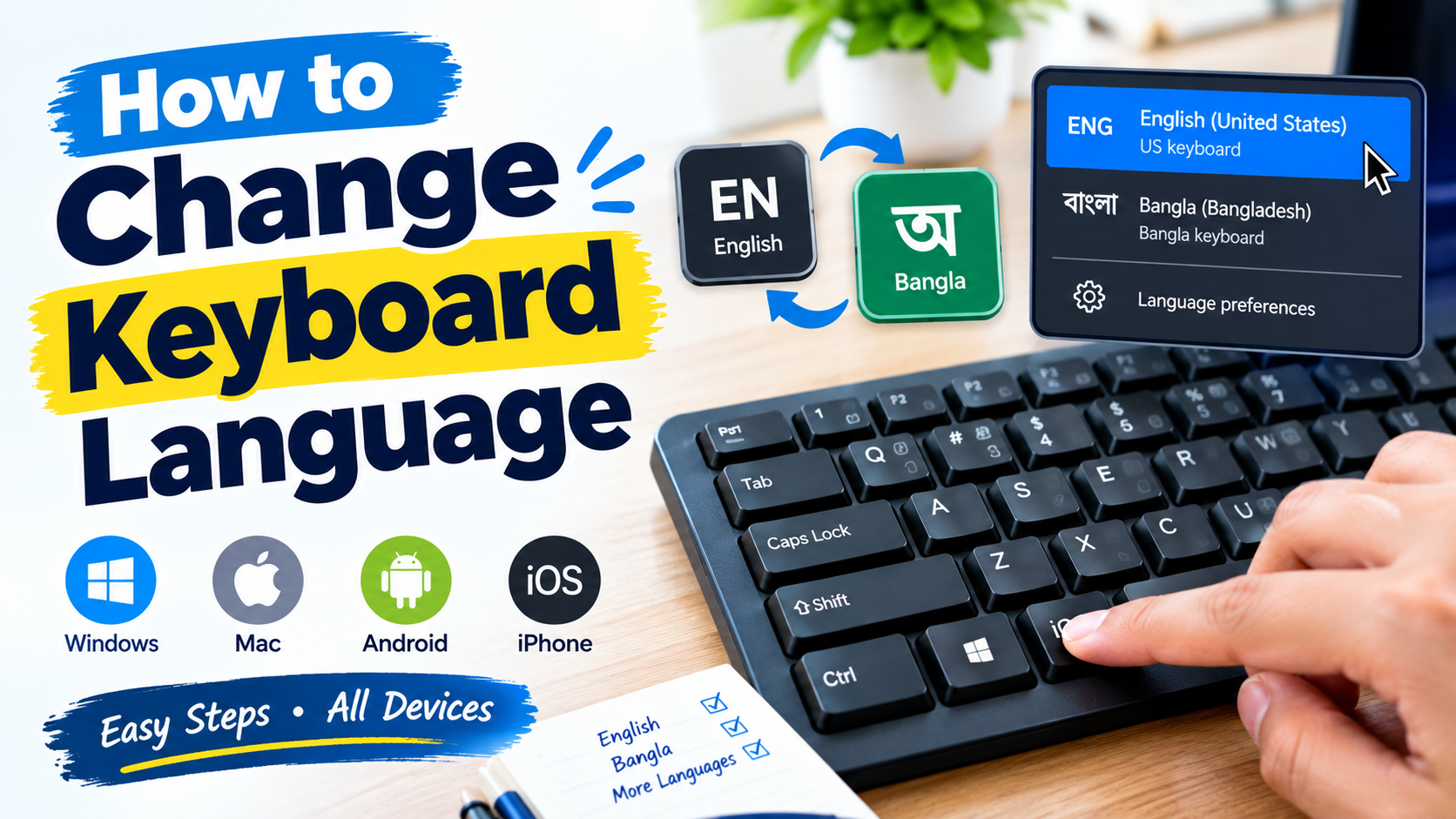
Changing your keyboard language allows you to type in different languages without changing your physical keyboard. Whether you want to switch between English and Bangla, add a new language, or change the default keyboard layout, the process is simple on Windows, Mac, Android, and iPhone.
How to Change Keyboard Language on Windows 11
- Open Settings.
- Go to Time & language.
- Select Language & region.
- Click Add a language.
- Search for the language you want, such as Bangla.
- Select the language and click Next.
- Choose the language features you need.
- Click Install.
Quickly Switch Between Keyboard Languages
Once multiple keyboard languages are installed, you can switch between them using:
Windows + Space
Pressing these keys opens the available keyboard layouts. Select the language you want to use.
You can also click the language indicator on the Windows taskbar, such as ENG, and choose another keyboard language.
How to Change Keyboard Language on Windows 10
- Open Settings.
- Select Time & Language.
- Click Language.
- Select Add a preferred language.
- Search for your preferred language.
- Install the language and keyboard layout.
- Use Windows + Space to switch between keyboards.
How to Add Bangla Keyboard on Windows
If you want to type Bangla on a Windows computer:
- Open Settings.
- Go to Time & language → Language & region.
- Select Add a language.
- Search for Bengali or Bangla.
- Install it.
- Select the Bangla keyboard layout.
- Press Windows + Space to switch between English and Bangla.
Depending on the keyboard layout you select, Bangla typing may use different input methods.
How to Change Keyboard Language on Mac
On macOS:
- Open System Settings.
- Select Keyboard.
- Find Text Input or Input Sources.
- Click Edit.
- Click the + button.
- Search for the language you want.
- Select the keyboard layout.
- Click Add.
You can then switch between input sources using the keyboard shortcut shown in your Mac’s keyboard settings.
How to Change Keyboard Language on Android
The exact steps can vary depending on your phone and keyboard app.
For Gboard:
- Open an app where you can type.
- Tap the text field to open the keyboard.
- Tap the Settings icon on Gboard.
- Select Languages.
- Tap Add keyboard.
- Select your preferred language.
- Choose the keyboard layout.
- Tap Done.
You can usually switch languages by tapping the globe/language key or by swiping across the spacebar, depending on your Gboard settings.
How to Change Keyboard Language on iPhone
- Open Settings.
- Go to General.
- Select Keyboard.
- Tap Keyboards.
- Select Add New Keyboard.
- Choose the language you want.
- Open any app with a text field.
- Tap the globe icon on the keyboard to switch languages.
How to Change the Default Keyboard Language
If you regularly use one language, you can make it your preferred or default input method.
On desktop operating systems, go to the keyboard or language settings and move your preferred keyboard/input source to the desired position. On mobile devices, the active keyboard and language settings are generally managed through the keyboard app and system settings.
Keyboard Language vs. Keyboard Layout
These two settings are related but not exactly the same.
Keyboard language determines the language used for typing and input.
Keyboard layout determines how characters are arranged on the physical keyboard.
For example, English may use US QWERTY, while another language may have a different layout or input method.
Common Keyboard Language Shortcuts
| Device | Common Method |
|---|---|
| Windows | Windows + Space |
| Mac | Input-source shortcut configured in Keyboard settings |
| Android/Gboard | Globe key or swipe spacebar |
| iPhone | Globe key |
Frequently Asked Questions
How do I switch from English to Bangla?
On Windows, install a Bangla keyboard and press Windows + Space to switch between English and Bangla.
Why can’t I see my new keyboard language?
Make sure the language and its keyboard/input method have been installed. Restarting the relevant application can also help.
Does changing the keyboard language change Windows’ display language?
Not necessarily. You can often change the keyboard/input language without changing the language used for menus and other parts of the operating system.
Can I have multiple keyboard languages?
Yes. You can install multiple input languages and switch between them whenever you type.
Conclusion
Changing your keyboard language is useful when you regularly communicate in multiple languages. On Windows, Windows + Space provides a quick way to switch between installed keyboard layouts, while Mac, Android, and iPhone provide language controls through their keyboard settings.
The most important step is to install the language and keyboard layout first; after that, switching between languages is usually only a keyboard shortcut or a tap away.