
How to Connect a Keyboard to iPad: A Complete Guide

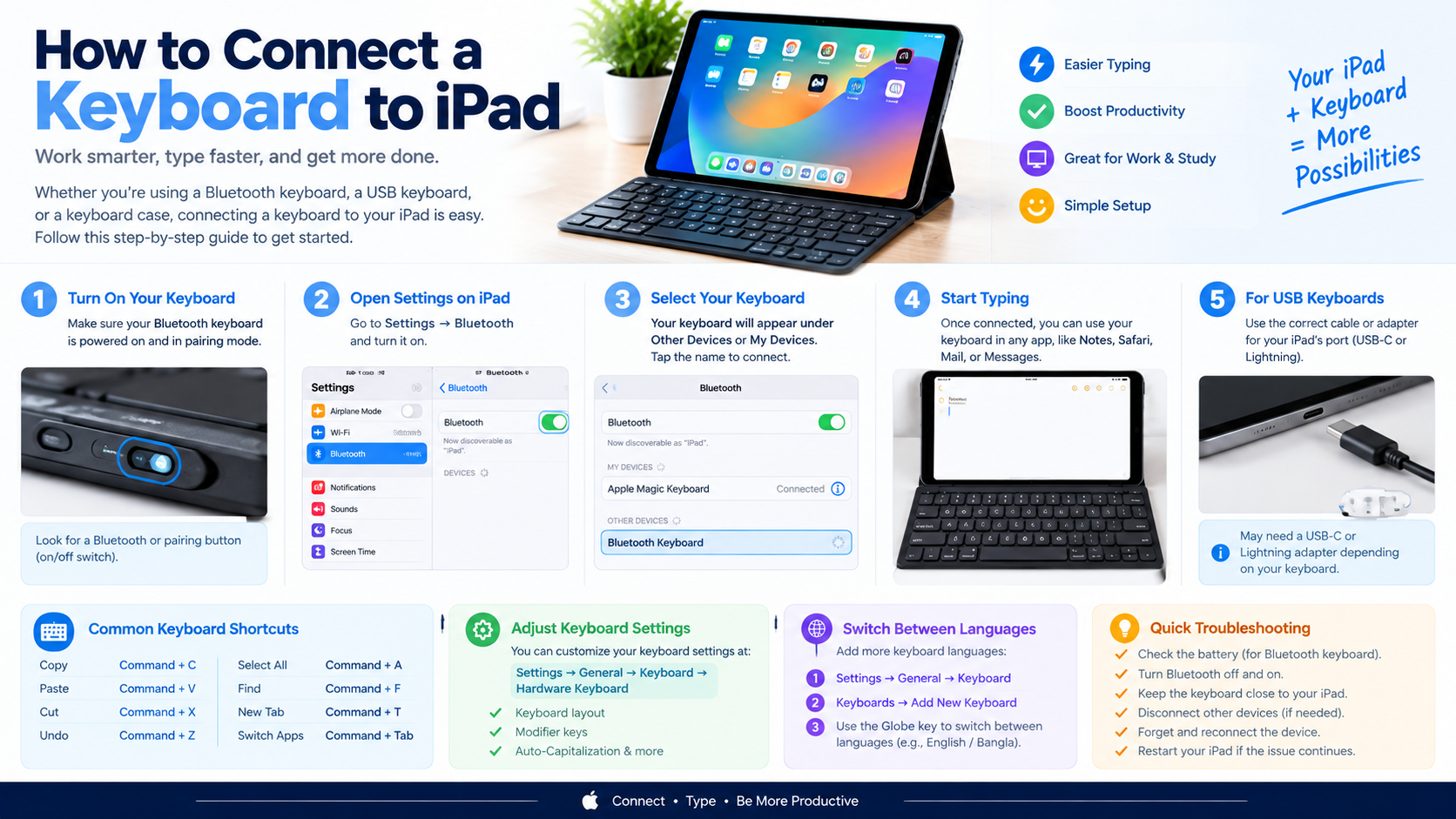
Connecting a keyboard to an iPad can make typing emails, documents, messages, and notes much easier. You can connect a Bluetooth wireless keyboard, USB keyboard, or iPad keyboard case depending on your iPad model and the keyboard you have.
This guide explains how to connect a keyboard to an iPad, troubleshoot connection problems, and switch between keyboard settings.
1. How to Connect a Bluetooth Keyboard to iPad
A Bluetooth keyboard is one of the easiest ways to connect a wireless keyboard to an iPad.
Step 1:
Turn on your Bluetooth keyboard and make sure it has sufficient battery power.
Step 2:
Press the keyboard’s Bluetooth or pairing button. Some keyboards may automatically enter pairing mode when turned on.
Check the keyboard manufacturer’s instructions if you aren’t sure how to activate pairing mode.
Step 3:
On your iPad:
Settings → Bluetooth
Turn Bluetooth on if it isn’t already enabled.
Step 4: Select Your Keyboard
Look under Other Devices for your keyboard’s name.
Tap the keyboard name.
Step 5:
Some keyboards display a code that you need to type on the physical keyboard and then press Enter.
Once connected, the keyboard should appear under My Devices.
You can now use it to type on your iPad.
2. How to Connect a USB Keyboard to iPad
You can also connect some wired keyboards directly to an iPad.
The exact connection method depends on whether your iPad has a USB-C or Lightning port.
For USB-C iPads
If your keyboard uses USB-C, you may be able to connect it directly.
For a keyboard with a standard USB connector, you may need a compatible USB-C adapter or hub.
For Lightning iPads
Older iPads with a Lightning connector may require a compatible Lightning-to-USB adapter.
Connect the adapter to the iPad and then connect the keyboard.
If the keyboard requires more power than the iPad can provide, a powered USB hub or suitable adapter may be necessary.
3. How to Connect an Apple Magic Keyboard to iPad
If you’re using an Apple Magic Keyboard with your iPad:
- Turn on the keyboard.
- Open Settings on the iPad.
- Tap Bluetooth.
- Make sure Bluetooth is enabled.
- Select the Magic Keyboard from the device list.
- Follow any pairing instructions shown on the screen.
Once paired, the keyboard should be ready for typing.
4. How to Connect a Keyboard Case to iPad
Some iPad keyboard cases connect through dedicated connectors rather than Bluetooth.
If your keyboard case is designed specifically for your iPad model:
- Make sure the iPad and keyboard case are compatible.
- Attach the iPad securely to the keyboard.
- Align the connector correctly.
- Open an app such as Notes.
- Tap a text field and start typing.
Some keyboard cases receive power directly from the iPad, while others may have their own battery or Bluetooth connection.
5. How to Check if the Keyboard Is Connected
After connecting your keyboard, open an app such as Notes.
Tap inside a text field and start typing.
You can also check:
Settings → Bluetooth
Your Bluetooth keyboard should appear under My Devices and show as connected.
6. How to Change Keyboard Settings on iPad
Once a physical keyboard is connected, you can customize some keyboard settings.
Go to:
Settings → General → Keyboard → Hardware Keyboard
Depending on your iPad and keyboard, you may see options related to:
- Keyboard layout
- Modifier keys
- Auto-Capitalization
- Auto-Correction
- Predictive text
- Language/input settings
7. How to Change the Keyboard Layout
If your physical keyboard types the wrong characters, the selected layout may not match your keyboard.
Go to:
Settings → General → Keyboard → Hardware Keyboard
Then select the appropriate keyboard layout.
For example, you may need to choose a layout such as:
- U.S.
- British
- International
- Other supported regional layouts
The available options depend on your iPad and installed languages.
8. How to Use Keyboard Shortcuts on iPad
Once a physical keyboard is connected, you can use many keyboard shortcuts.
Common examples include:
| Action | Shortcut |
|---|---|
| Copy | Command + C |
| Paste | Command + V |
| Cut | Command + X |
| Undo | Command + Z |
| Select All | Command + A |
| Find | Command + F |
| New tab in supported apps | Command + T |
To see available shortcuts in many iPad apps, press and hold the Command key (⌘).
The available shortcuts can vary by app.
9. How to Switch Between Languages
If you use multiple languages, you can add additional keyboards through:
Settings → General → Keyboard → Keyboards → Add New Keyboard
After adding another language, you can switch between available input languages using the Globe key on a compatible keyboard.
For example, you can switch between English and Bangla if both input keyboards are installed.
Keyboard Not Connecting to iPad? Try These Fixes
If your Bluetooth keyboard doesn’t connect, try the following steps.
Check the Battery
Make sure the keyboard has enough battery power.
Turn Bluetooth Off and On
Go to:
Settings → Bluetooth
Turn Bluetooth off, wait a few seconds, and turn it back on.
Move the Keyboard Closer
Keep the keyboard close to the iPad while pairing.
Disconnect Other Devices
Some keyboards may already be connected to another computer, tablet, or phone. Disconnect it from the other device or switch the keyboard to the correct Bluetooth pairing channel.
Forget and Reconnect
Go to:
Settings → Bluetooth
Tap the information button next to the keyboard and choose Forget This Device if available. Then put the keyboard back into pairing mode and connect it again.
Restart the iPad
Restarting the iPad can resolve temporary Bluetooth or input problems.
Check Compatibility
Make sure the keyboard is compatible with your iPad and its current operating system.
Bluetooth Keyboard vs. USB Keyboard
| Feature | Bluetooth Keyboard | USB Keyboard |
|---|---|---|
| Wireless | Yes | No |
| Cable required | No | Yes |
| Easy to carry | Yes | Depends |
| Pairing required | Yes | Usually no |
| Adapter may be needed | Usually no | Sometimes |
| Battery | Usually required | Usually powered by connection |
For everyday iPad use, a Bluetooth keyboard provides convenient wireless typing, while a wired keyboard can be useful when you want a direct physical connection.
FAQ
Can I connect any Bluetooth keyboard to an iPad?
Many standard Bluetooth keyboards work with iPad, but compatibility can vary. Check the keyboard manufacturer’s specifications if you’re unsure.
Can I connect a wireless keyboard without Bluetooth?
Some wireless keyboards use a USB receiver rather than Bluetooth. Depending on the receiver and your iPad’s port, you may need a compatible adapter or hub.
Why is my keyboard connected but not typing?
Check that the keyboard is connected to the correct device, has sufficient battery power, and that the selected hardware keyboard layout matches the physical keyboard.
Can I use a PC keyboard with an iPad?
Yes. Many standard PC keyboards can work with iPad, although some Windows-specific keys may have different functions on iPadOS.
Conclusion
Connecting a keyboard to an iPad is usually straightforward. For a Bluetooth keyboard, turn it on and put it into pairing mode, then go to Settings → Bluetooth and select the keyboard. For a wired keyboard, use the appropriate connection or adapter for your iPad’s port.