
How to Clean a Keyboard: A Complete Step-by-Step Guide

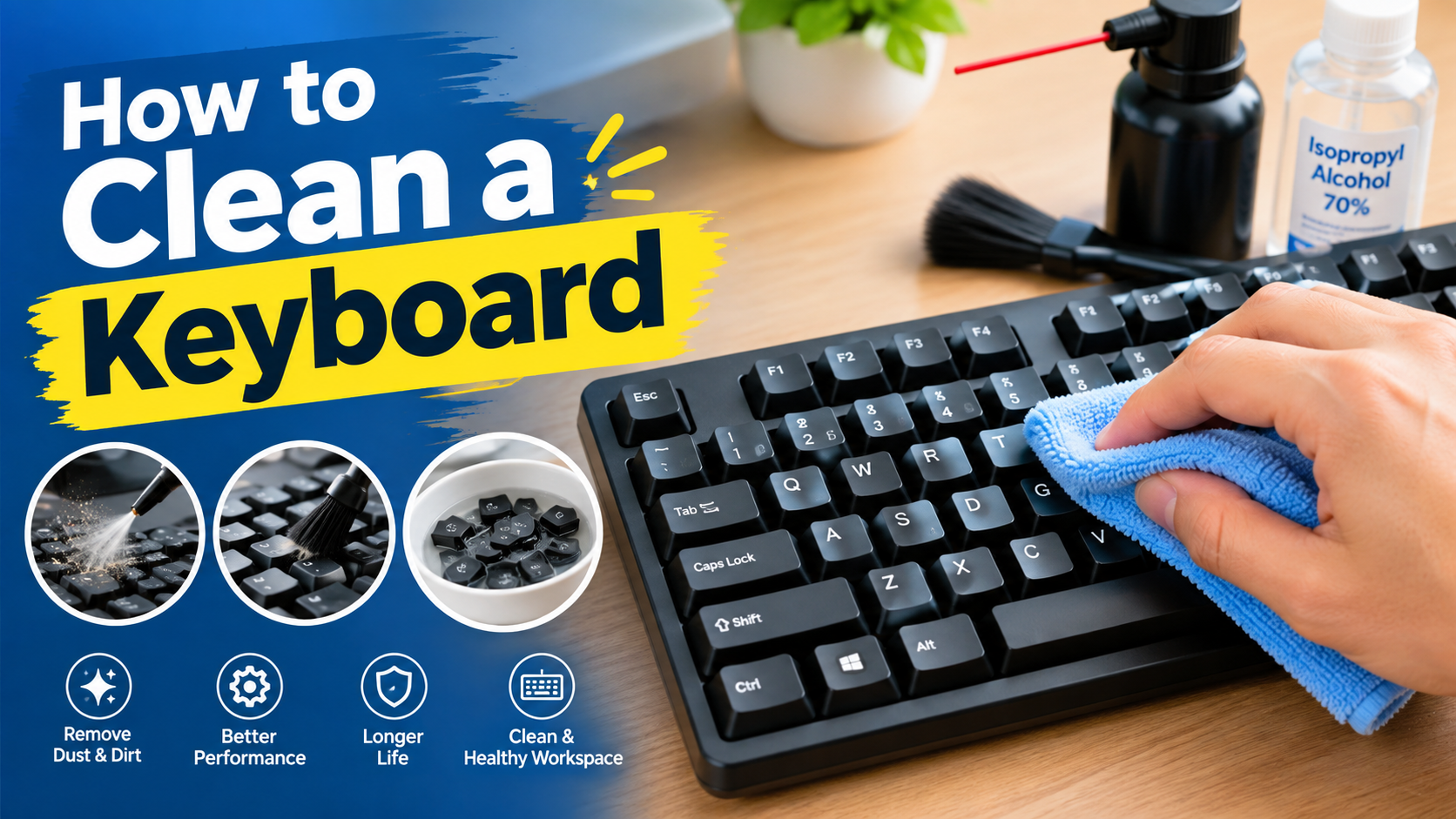
A keyboard collects dust, crumbs, hair, and other debris over time. Regular cleaning can help keep your keyboard looking fresh, improve key performance, and maintain a more comfortable typing experience. Whether you use a desktop keyboard, laptop keyboard, or mechanical keyboard, the cleaning process is relatively simple when done carefully.
In this guide, you’ll learn how to clean a keyboard safely, what tools you need, what to avoid, and how often you should clean it.
Why Should You Clean Your Keyboard?
Your keyboard is one of the most frequently used parts of a computer. Dust and dirt can build up between and underneath the keys, while oils from your fingers can leave the keycaps dirty.
Regular keyboard cleaning can help:
- Remove dust, crumbs, and debris
- Prevent sticky or unresponsive keys
- Reduce the buildup of dirt and oils
- Keep your workspace more hygienic
- Extend the useful life of your keyboard
- Improve the overall typing experience
What You Need to Clean a Keyboard
Before you start, gather a few basic cleaning supplies:
- Soft microfiber cloth
- Compressed air or an air blower
- Small, soft-bristled brush
- Cotton swabs
- Isopropyl alcohol, preferably 70% or higher
- A small bowl, if removing keycaps
- Keycap puller for mechanical keyboards
You don’t need all of these tools for every cleaning session. A microfiber cloth, soft brush, and compressed air are usually enough for routine cleaning.
How to Clean a Keyboard Step by Step
1. Turn Off and Disconnect the Keyboard
Before cleaning, turn off your computer and disconnect the keyboard.
For a wireless keyboard, turn it off and remove the batteries if appropriate. If you’re cleaning a laptop keyboard, shut down the laptop completely and disconnect the charger.
This reduces the risk of accidentally pressing keys or causing electrical damage.
2. Shake Out Loose Debris
Hold the keyboard upside down and gently shake it over a desk or trash bin.
Don’t shake it aggressively. A gentle movement can help remove loose crumbs, dust, and other particles trapped between the keys.
For a laptop, avoid excessive movement or pressure because the keyboard is integrated into the computer.
3. Use Compressed Air
Use short bursts of compressed air to blow dust and debris from between the keys.
Hold the keyboard at an angle and direct the air across the gaps rather than forcing debris deeper into the keyboard.
Tip: Don’t hold a compressed-air can upside down or use excessive pressure.
4. Brush Between the Keys
Use a small, soft brush to loosen dust that compressed air doesn’t remove.
Gently brush around the edges of the keys and in the spaces between them. A clean, soft paintbrush or electronics-cleaning brush can work well.
5. Wipe the Keycaps
Lightly dampen a microfiber cloth with isopropyl alcohol and gently wipe the surface of the keys.
The cloth should be damp, not wet. Never pour or spray liquid directly onto the keyboard.
Pay extra attention to frequently used keys such as:
- Spacebar
- Enter
- Shift
- Backspace
- Ctrl
- WASD or gaming keys
6. Clean Around the Edges
Use a cotton swab lightly dampened with isopropyl alcohol to clean around the edges of the keys.
This can help remove fingerprints, oil, and dirt from areas that are difficult to reach with a cloth.
Avoid allowing liquid to enter the keyboard.
How to Clean a Mechanical Keyboard
Mechanical keyboards can usually be cleaned more thoroughly because many models have removable keycaps.
Remove the Keycaps
If your mechanical keyboard allows it, use a keycap puller to carefully remove the keycaps.
Don’t force a keycap upward if it doesn’t come off easily.
Clean the Keycaps
Place the removed keycaps in a container with warm water and a small amount of mild dish soap. Let them soak for a while, then gently clean them.
Rinse the keycaps thoroughly and allow them to dry completely before reinstalling them.
Never put wet keycaps back on the keyboard.
Clean the Keyboard Frame
While the keycaps are removed, use a soft brush or compressed air to remove dust and debris from the keyboard’s surface.
Then wipe the frame with a lightly dampened microfiber cloth.
How to Clean a Laptop Keyboard
Laptop keyboards require extra care because the keyboard is connected directly to the computer.
Follow these steps:
- Shut down the laptop.
- Disconnect the charger and accessories.
- Hold or position the laptop so loose debris can fall away.
- Use short bursts of compressed air.
- Brush gently between the keys.
- Wipe the keys with a lightly damp microfiber cloth.
- Allow the keyboard to dry completely before turning the laptop back on.
Important: Avoid removing laptop keycaps unless you know they are designed to be removed. Some laptop key mechanisms can be easily damaged.
What Not to Do When Cleaning a Keyboard
Avoid these common mistakes:
Don’t Spray Liquid Directly Onto the Keyboard
Liquid can enter the switches or electronics and cause damage.
Don’t Use Excessive Water
A wet keyboard can lead to electrical problems and corrosion.
Don’t Use Harsh Cleaning Chemicals
Strong chemicals may damage key legends, plastic surfaces, or coatings.
Don’t Force the Keys
If a key doesn’t come off easily, check the manufacturer’s instructions before attempting to remove it.
Don’t Turn the Keyboard on While It’s Wet
Make sure all components and surfaces are completely dry before reconnecting or powering the keyboard.
How Often Should You Clean Your Keyboard?
The ideal cleaning frequency depends on how often you use your keyboard and your environment.
A simple routine can be:
- Daily: Wipe the keyboard surface if needed.
- Weekly: Remove visible dust and debris.
- Monthly: Perform a more thorough cleaning.
- Every few months: Deep-clean removable keycaps on mechanical keyboards if necessary.
If you eat at your desk, have pets, or work in a dusty environment, you may need to clean your keyboard more frequently.
How to Prevent a Keyboard From Getting Dirty
Regular maintenance can make deep cleaning much easier.
Try these habits:
- Avoid eating directly over your keyboard.
- Wash and dry your hands before typing.
- Keep drinks away from the keyboard.
- Clean your desk regularly.
- Use a keyboard cover when appropriate.
- Remove dust regularly instead of allowing it to accumulate.
What to Do If You Spill Liquid on Your Keyboard
If you accidentally spill liquid on a keyboard, act quickly.
- Disconnect the keyboard immediately.
- If it’s a laptop, shut it down.
- Disconnect the charger and other accessories.
- If possible, remove the battery according to the manufacturer’s instructions.
- Position the device so liquid can drain away.
- Do not turn it back on until it has been properly dried and assessed.
For a significant spill—especially on a laptop—professional inspection may be safer than attempting to power it on again.
FAQ:
Can I use alcohol to clean my keyboard?
Yes. A small amount of isopropyl alcohol on a microfiber cloth or cotton swab can be useful for cleaning keyboard surfaces. Avoid soaking the keyboard or allowing liquid to enter the electronics.
Can I wash keyboard keys?
Removable mechanical-keyboard keycaps can generally be washed separately, provided they are completely dry before being reinstalled. Check the keyboard manufacturer’s guidance first.
Can I use a vacuum cleaner on my keyboard?
A low-power electronics vacuum can be useful for removing loose debris. Avoid aggressive suction or tools that could damage delicate components.
How do I clean a sticky keyboard key?
First disconnect the keyboard. Use a soft brush and a lightly dampened cotton swab or microfiber cloth to clean around the key. If the problem continues, the key mechanism may require deeper cleaning or repair.
How long does it take to clean a keyboard?
A basic cleaning can take around 5–10 minutes, while a detailed mechanical-keyboard cleaning can take considerably longer, especially if you remove and wash the keycaps.
Final Thoughts
Learning how to clean a keyboard doesn’t require expensive equipment. Regularly removing dust and debris, wiping the key surfaces, and avoiding excessive moisture can help keep your keyboard clean and functional.
For routine maintenance, remember the basic rule: disconnect the keyboard, remove loose debris, use gentle cleaning tools, avoid excess liquid, and let everything dry completely before use.